Reserve machine time
Choose a machine and start/end time. Link an unscheduled booking for an appointment, or leave it unlinked for maintenance, a manual hold or unavailable time.
A visual walk through your booking workspace. See where requests arrive, how machine time is assigned, and how to keep the calendar accurate.
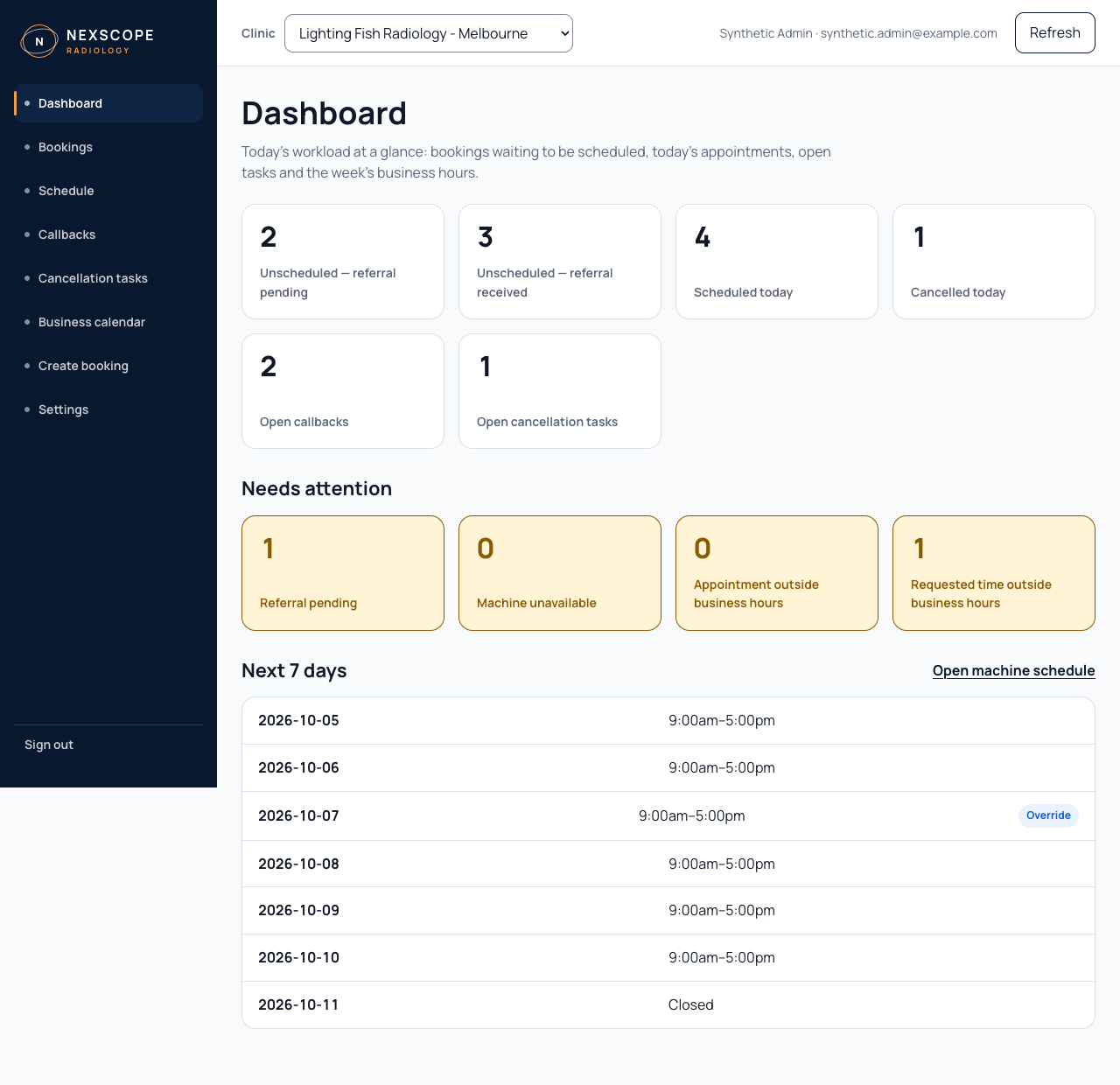
Choose a screen below. The orange markers point to the actions that matter most.
Swipe the screen names to explore all 12 views →
Follow a new online request through the five steps your team actually uses.
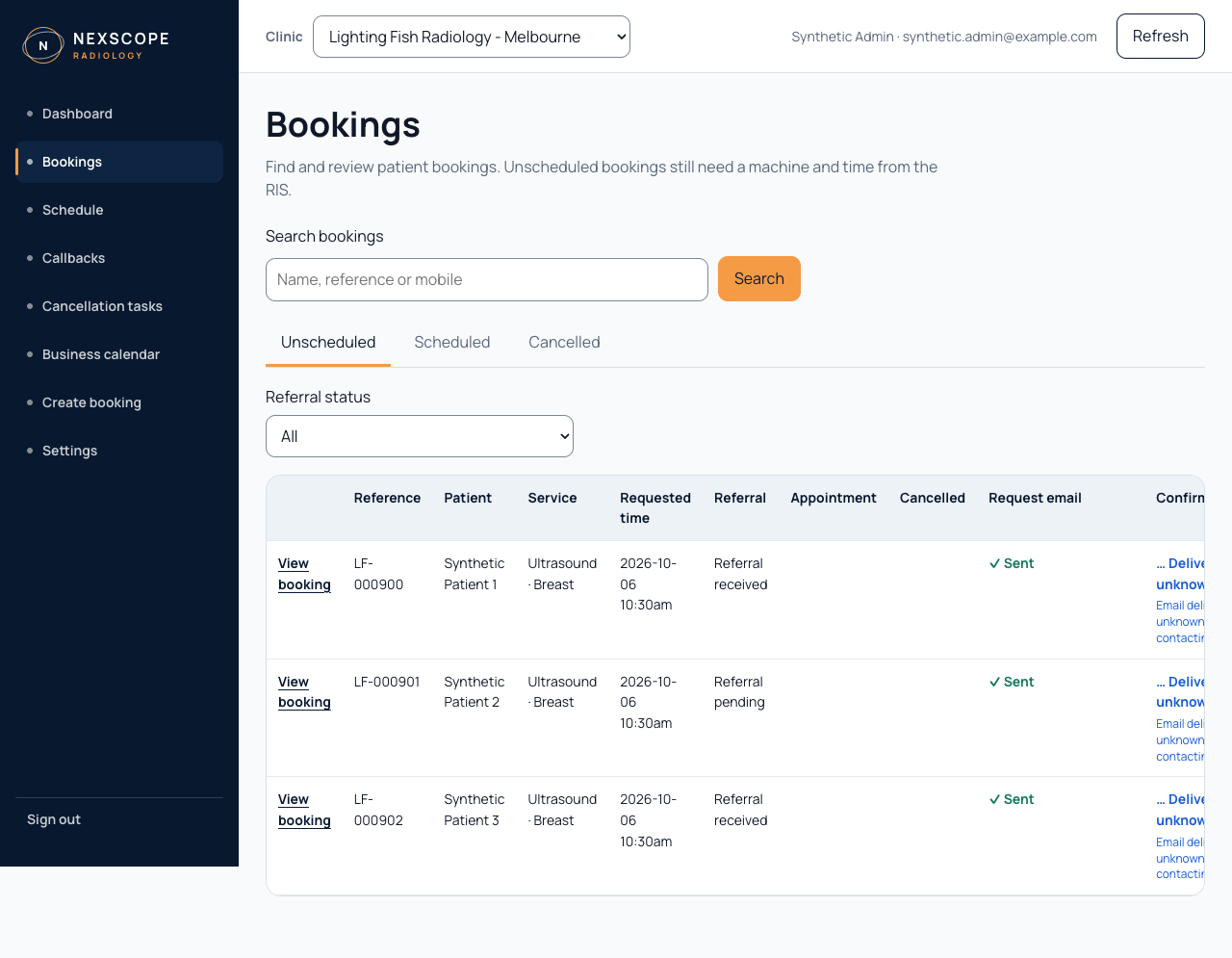
A few common situations, with the exact place to start.
Choose a machine and start/end time. Link an unscheduled booking for an appointment, or leave it unlinked for maintenance, a manual hold or unavailable time.
Use Reschedule on the booking. The earlier block remains in history and a new confirmation email is created for the new time.
Call the patient, then choose Create booking or Mark as resolved. Creating from a callback also resolves that request.
Update the RIS and complete any follow-up, then select Mark as handled. The patient's cancelled appointment has already released its machine block.
Enter patient details and the service. Requested time is optional. Upload the referral when available, then schedule the machine separately.
Review delivery status after scheduling, rescheduling or cancellation. If an email failed, call the patient; Resend latest email is available when needed.
Calendar and settings changes affect what patients can request. Only administrators can edit these controls.
See the steps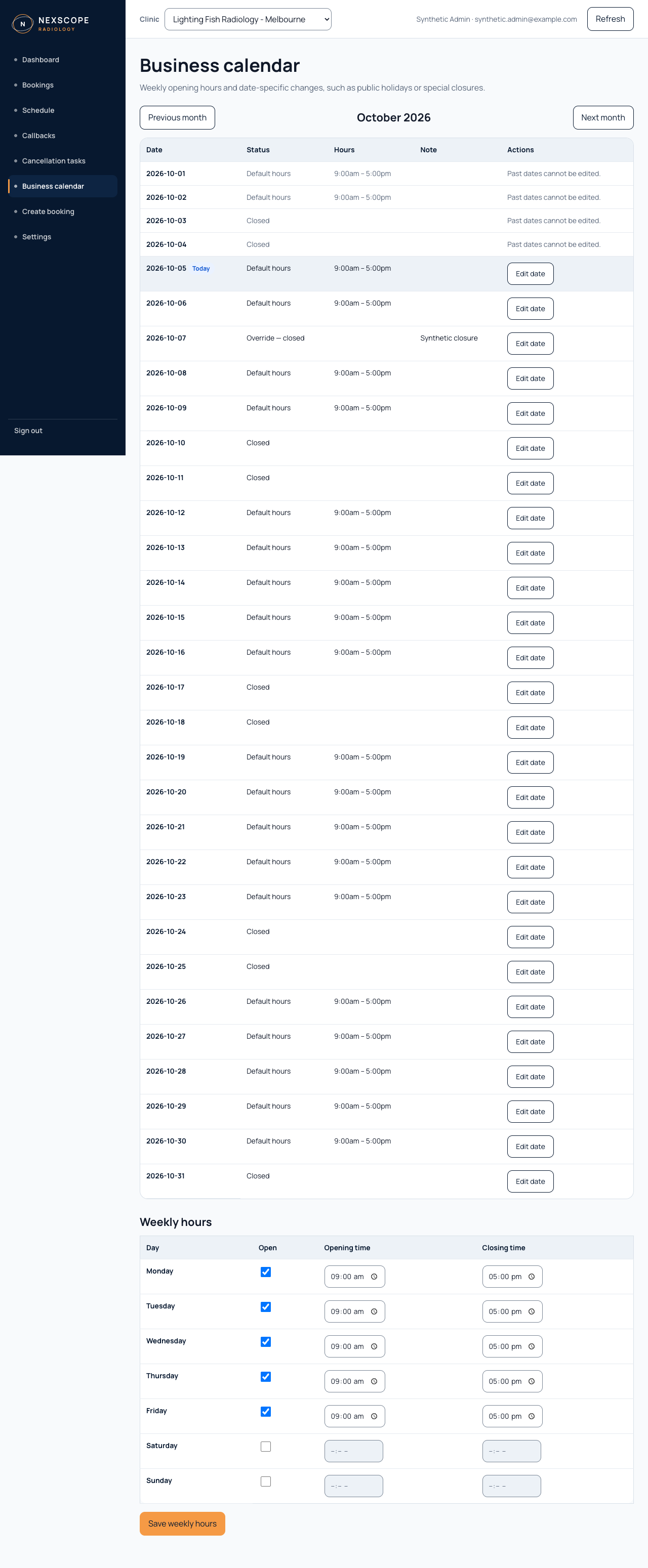
Open Business calendar, find the future date, then choose Edit date. Select Closed all day and save the override. That date stops appearing as available to patients.
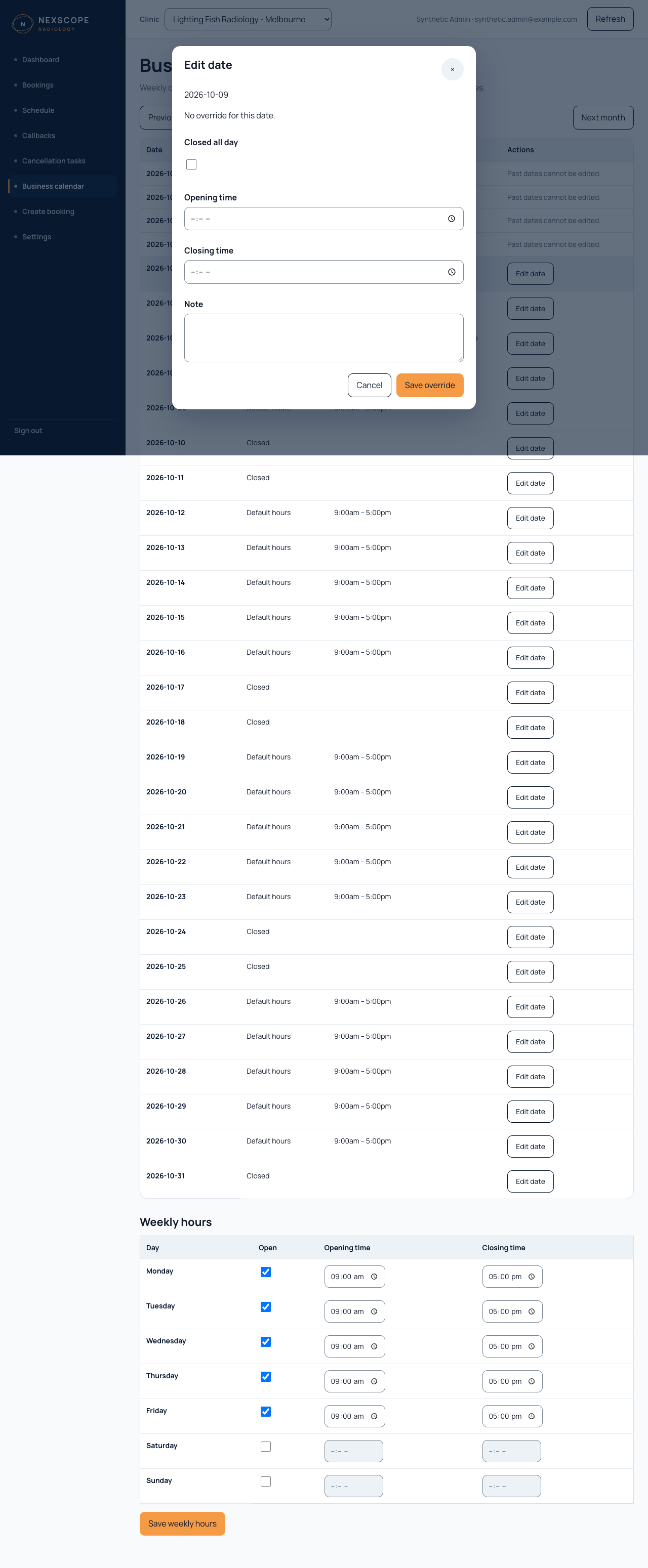
Edit the same date. Clear Closed all day and set opening and closing times, or delete the override to return to normal weekly hours. Review any warning about existing appointments outside the new hours.
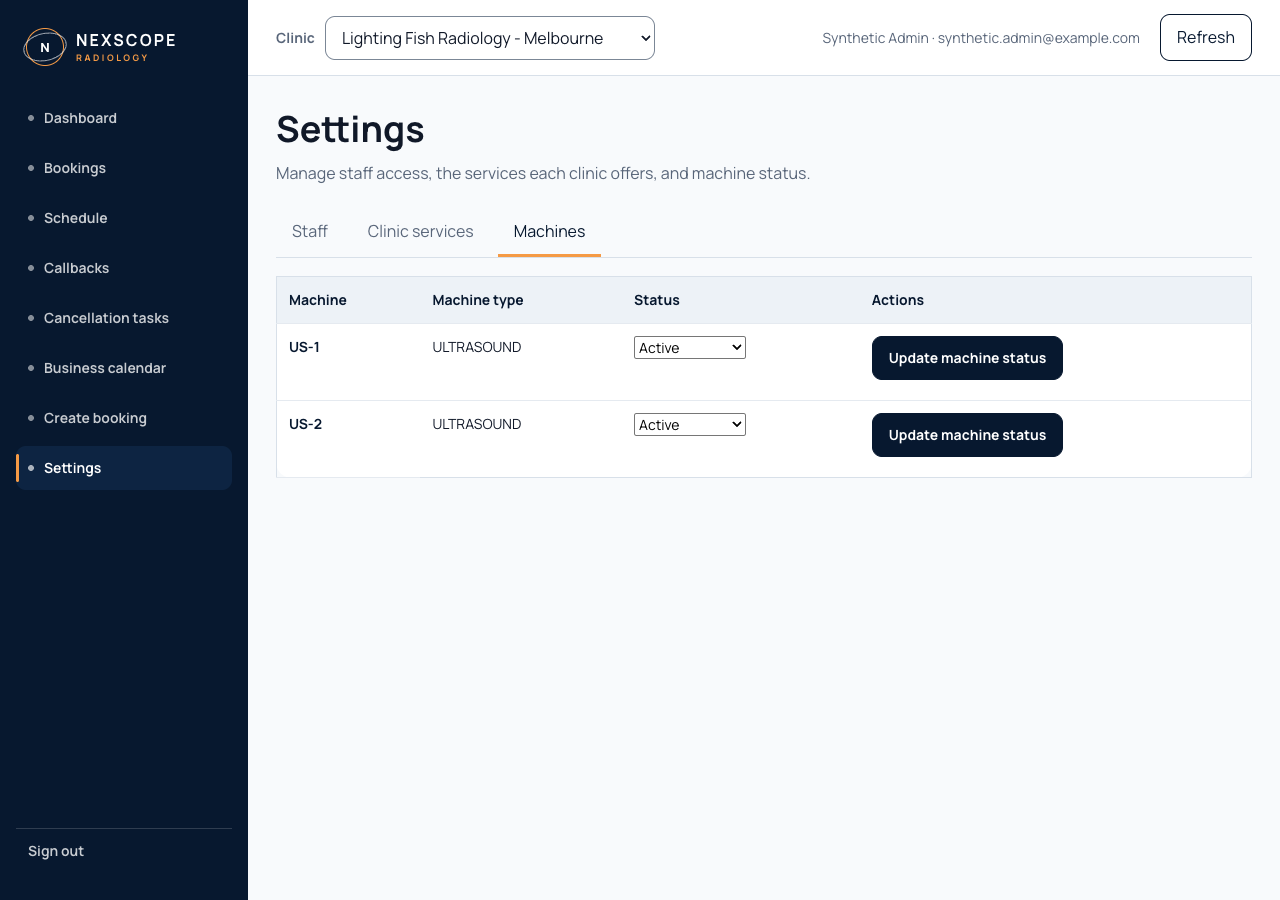
For one machine's maintenance or a short hold, add an unlinked block in Schedule. For a machine that is out of service, update its status in Settings → Machines. Do not close the entire clinic for a single machine.
Use the screen tour when learning your way around, and return to the booking flow whenever a new request arrives.
Back to the screen tour ↑